Use the sellerboard MCP connector to ask an AI assistant about your sales, profit, advertising, inventory, and other supported data. MCP stands for Model Context Protocol. It lets a compatible assistant retrieve information from your sellerboard account when you ask a question.
Set up the connector · Ask your first question · Try a workflow · Check access and limits · Troubleshoot a connection
Set up the connector
On sellerboard.com, MCP is available on paid plans and during the trial. If you sign in as an additional user, the account owner needs to grant you MCP access. Your AI account or workspace also needs to allow custom MCP connections.
Get the sellerboard connector URL
For sellerboard.com:
- From the Profit dashboard, open Settings.
- Select MCP Connector.
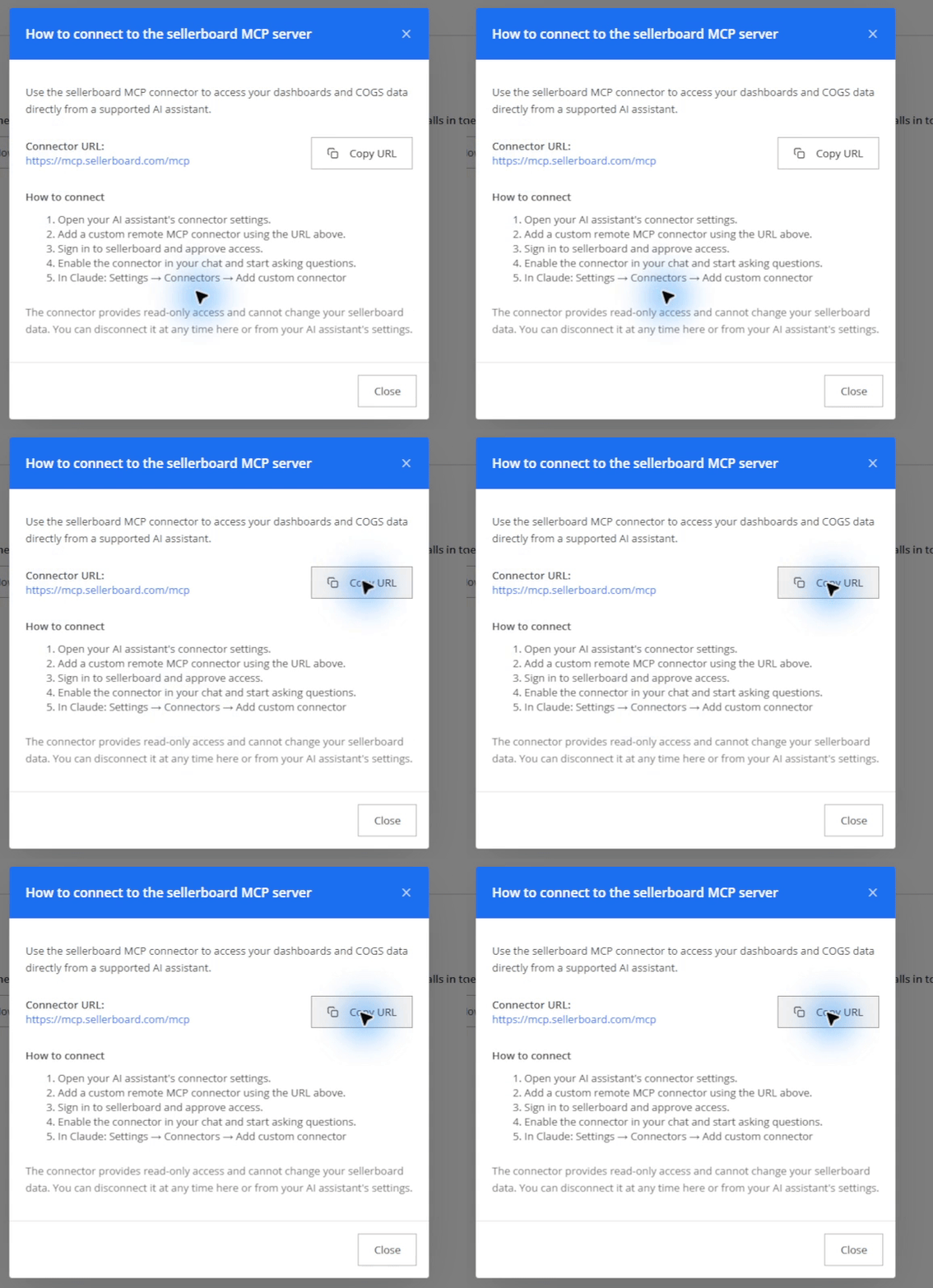
- Select How to connect, then select Copy URL.
| Your product | Connector URL |
|---|---|
| sellerboard.com | https://mcp.sellerboard.com/mcp |
| sellerboard.io | https://mcp.sellerboard.io/mcp |
Use the endpoint that matches the product you sign in to. The sellerboard.io connector uses your sellerboard.io login and reads .io data. It does not replace the .com connector for Amazon data.
View walkthrough: find the url in the sellerboard how to connect dialog
Connect Claude
- Open Customize.
- Select Connectors.
- Select Add and choose the custom web connector option. Depending on your interface, this may appear as Custom, then Web, or Add custom connector.
- Name the connector sellerboard and enter the matching connector URL.
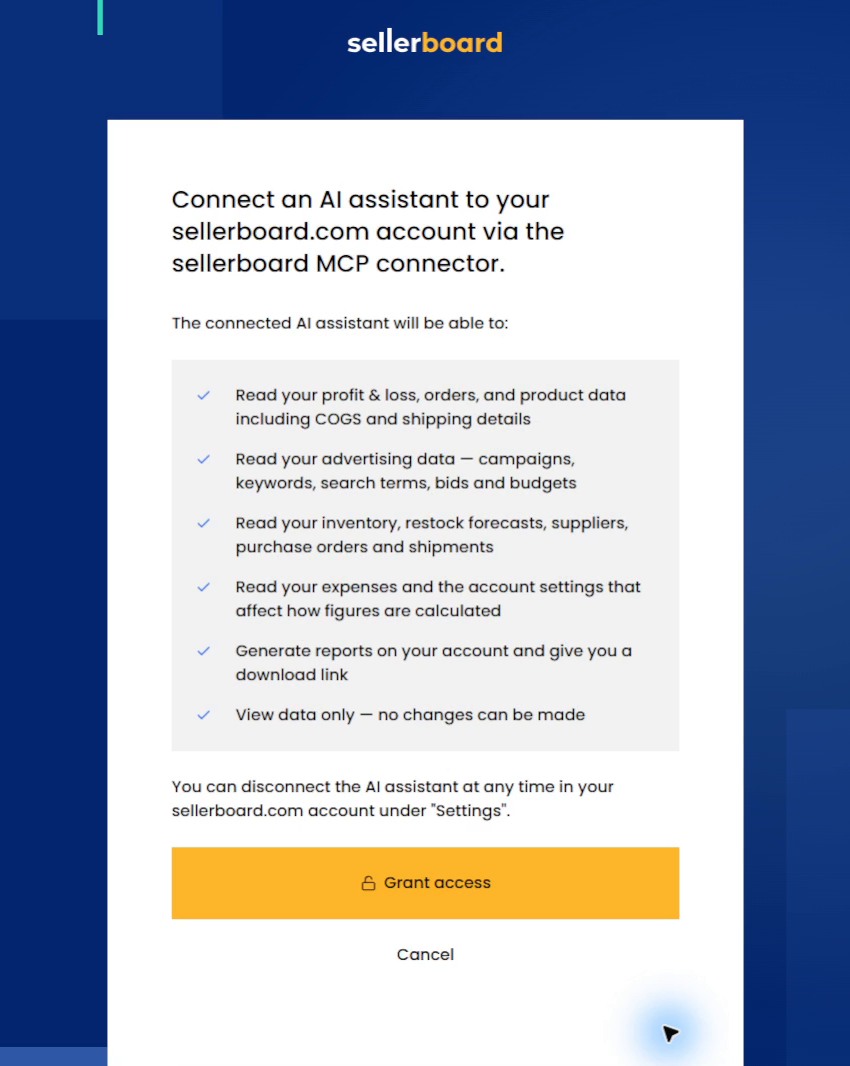
- Follow the setup prompts. When sellerboard opens, sign in to the matching product and review the access request before granting access.
- In a conversation, select +, open Connectors, and enable sellerboard.
If you use Claude Team or Enterprise, an organization owner may need to add the connector first. See the Claude custom connector guide.
Connect ChatGPT
- In ChatGPT on the web, open Plugins.
- Select +, then Add custom MCP server.
- Name the connection sellerboard and enter the matching connector URL under Connection.
- Follow the authentication prompts. Review the risk warning and continue only if you accept it.
- Select Create as a plugin and follow the prompts to connect it. When sellerboard opens, sign in to the matching product and review the access request before granting access.
- In a conversation, select the sellerboard plugin before asking your question.
If you do not see the creation option, check your plan or workspace permissions. The OpenAI custom MCP guide also covers the older Apps interface.
Ask your first question
Start with one account, one marketplace, and a short date range.
- Open a conversation with the sellerboard connector enabled.
- Ask: “Use sellerboard to show sales and net profit for [account] in [marketplace] from [start date] through [end date]. State the currency and tell me if any data is missing.”
- Compare the result with your sellerboard dashboard using the same account, marketplace, dates, and currency.
Try a workflow
- Find what changed in profit. “Compare net profit for [account and marketplace] across [two date ranges]. Show the biggest changes in advertising cost, Amazon fees, refunds, and cost of goods.”
- Review advertising and inventory together. “For [Amazon account and date range], identify products with high ad spend. For those products, show current inventory and flag any likely stockouts. Flag missing inputs.”
- Review unresolved alerts. “For [Amazon account and marketplace], list unresolved alerts from [start date] through [end date], grouped by priority.”
- Investigate an FBM shipping cost. “Which shipping profile applies to [SKU] in [Amazon marketplace]? Show the zone and rate for [destination] and flag any per-SKU override.”
- Read a finished report. “Use the finished Refunds CSV report for [date range] and summarize the most common return reasons. If you cannot open the file, tell me rather than guessing.”
Check access and limits
What the connector can change. The connector reads supported business data. It does not edit source data such as product costs, shipping profiles, account settings, or alerts. Report jobs are a separate case: where supported, the assistant can request a report, check its status, download the finished export, or cancel a report it requested. Creating or canceling a report job does not edit the underlying business data. Review any action prompt in your AI app before approving it.
What data is available. The assistant can access only data your sellerboard user has permission to see. On .com, Amazon has the broadest coverage. Connected Walmart and eBay accounts also support selected data, including dashboard, product, expense, and report data. Do not assume that a feature available for one sales channel is available for another. For Shopify data, use the separate .io connector.
Trying the demo? A demo connection lasts 60 minutes and permits up to 200 calls total. These limits apply to demo connections; see the MCP settings page for the allowance on your own account.
Daily calls. Usage is counted per sellerboard user under the account owner’s plan and resets at 00:00 UTC. One question can use several calls. Open the MCP settings page to see your usage and allowance. Owners can see their users’ usage; additional users see their own.
Report files. An AI app that can open web links can read a supported finished CSV report. For large reports, try a shorter period; for Excel or PDF files, download the report and review it separately. Report links expire. Treat any temporary download link as private and do not share it publicly. The data the assistant retrieves is processed by your chosen AI service.
Troubleshoot a connection
Why is sellerboard missing from my conversation? First check that the connector is enabled in that conversation. If you added it while a chat was already open, try a new chat and enable it there.
Why can I connect but not see an account or feature? Check that you used the matching .com or .io connector and signed in as the right sellerboard user. If you are an additional user, ask the account owner to check your MCP and data permissions. The requested feature also needs to be supported for that channel.
Why doesn’t the answer match my dashboard? Specify the account, marketplace, currency, and exact start and end dates. Ask the assistant to state what it used and what it could not retrieve. Compare the answer with the same dashboard filters before using the result.
What if I reach my call limit? Wait until the daily reset at 00:00 UTC. To use fewer calls, start with one account and a smaller question.
How do I revoke access? Open the MCP settings page in sellerboard and disconnect the AI app there. You can also remove the connector or plugin from your AI app.
If the issue continues, contact sellerboard support with the AI app name, affected feature, and the exact error text. Do not include passwords, access tokens, or private report links.