The Repricer automatically adjusts your Amazon offer prices within the limits you set. You can calculate those limits from your costs and a target margin or ROI, rather than entering a fixed minimum for every listing. Use a profile to give several listings the same rules, then check each listing’s price range and results before expanding the setup.
The Repricer compares offers on the same Amazon product (ASIN), not different products. It works with Fulfillment by Amazon (FBA), seller-fulfilled Prime and regular merchant-fulfilled (FBM) offers. Only listings in New condition can be repriced.
Set up your first listing · Choose a strategy and price limits · Manage existing listings and profiles · Review results · Troubleshoot
Set up your first listing
Before you start, connect the Amazon account you want to use and check the product’s cost of goods sold (COGS). Pick one listing whose price and results you can easily review. If you already have a suitable profile, start with assigning it to the listing.
Create a profile
- Open Repricer in the left menu.
- Select Profiles, then Add new profile.
- Enter a Profile title that tells you which listings the profile is for.
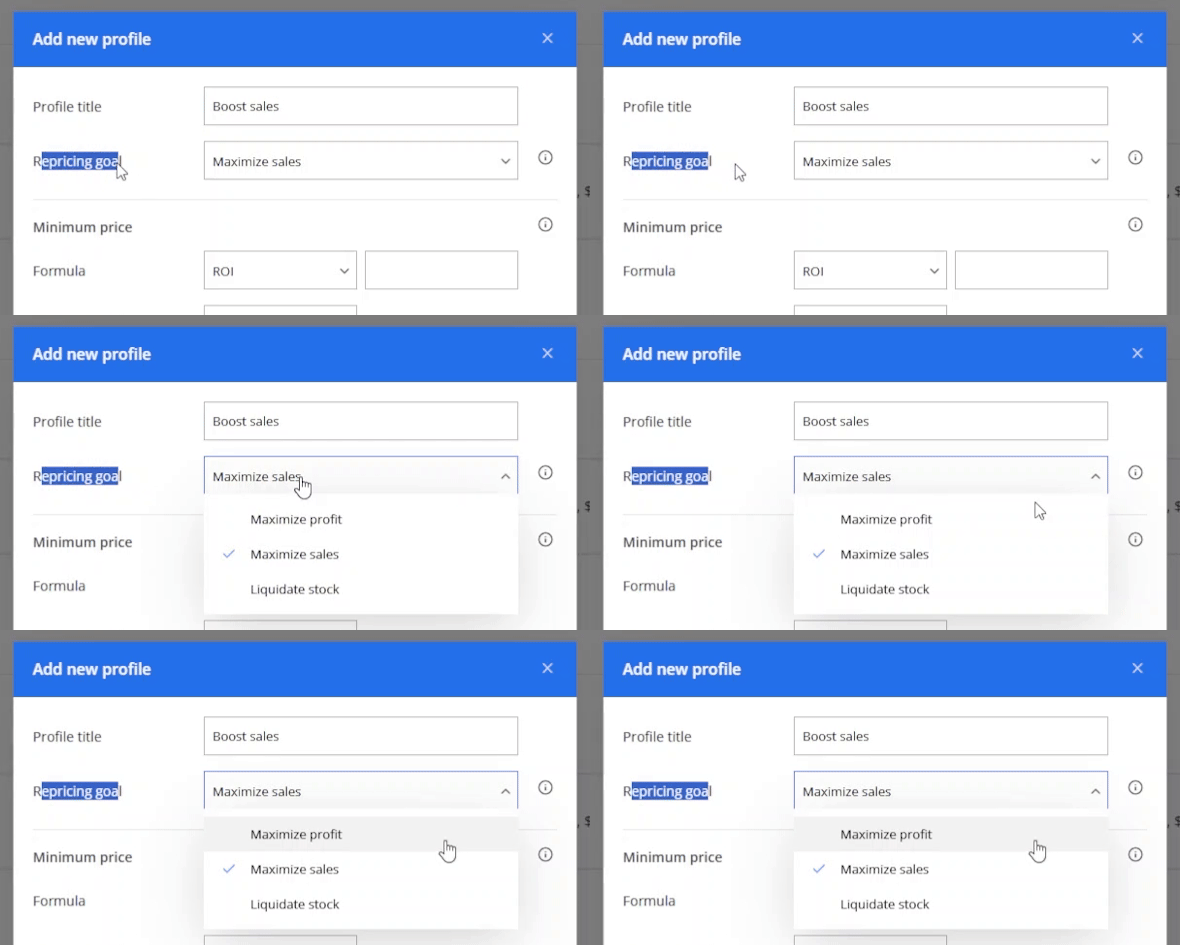
- Choose a Repricing goal. If you choose Liquidate stock, enter the target in Sell out by (date).
- Set the Minimum price and Maximum price formulas. To add a minimum profit amount per unit, fill in And profit at least.
- Review Compete with, Keep prices within Amazon’s min/max limits, and Scheduling. Select Apply and check that the profile appears in Profiles.
Creating a profile saves rules. It does not turn repricing on for any listing.
View walkthrough: choose a repricing goal
Assign a profile and turn repricing on
- Open Repricer, then Dashboard.
- Select the marketplace and find the listing by title, ASIN or seller SKU. If your view is set to Repricer on, switch to All products to include listings that are off.
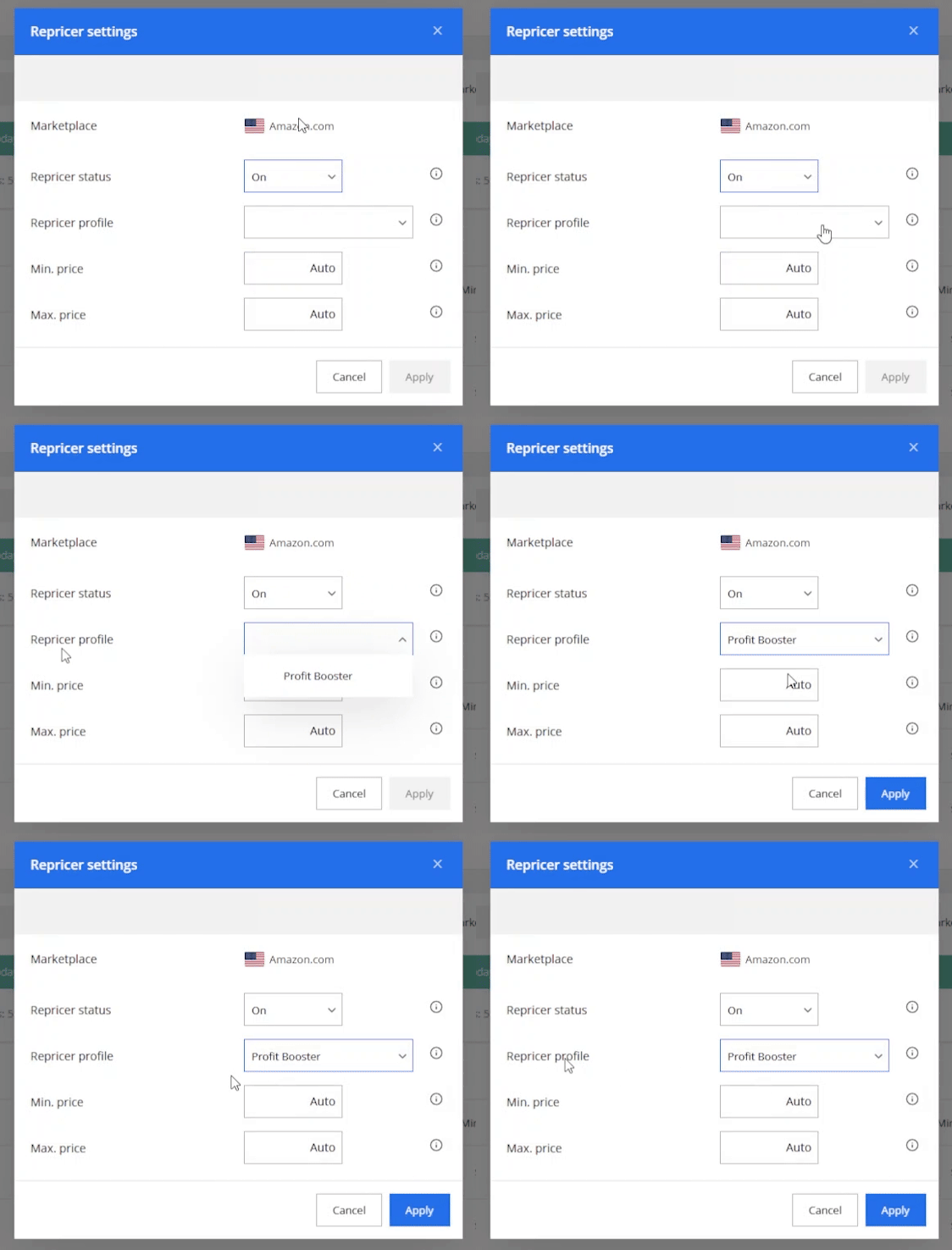
- Select the pencil in the listing’s Actions column. In Repricer settings, confirm the product and Marketplace.
- Choose a Repricer profile and review Min. price and Max. price. Enter exact prices here only if you intend to override the profile’s limits for this listing.
- Set Repricer status to On, then select Apply. This allows sellerboard to change the listing’s live price on Amazon.
- Check that the listing shows the intended profile, limits and On status. Reopen the settings if you need to confirm the saved values.
If you only want to prepare the listing, leave its status Off when you apply the profile. On confirms the setting. It does not mean a price has already changed.
View walkthrough: assign a profile and check the price limits
Choose a strategy and price limits
Which repricing goal should I choose?
| Goal | What it does | When to use it |
|---|---|---|
| Maximize profit | Competes for the Buy Box within your limits, then tests higher prices after gaining it. | You want to earn more per unit while staying competitive. |
| Maximize sales | Prioritizes a competitive offer and sales pace over testing how high the price can go. It can still raise your price; it is not an exact price-match rule. | You want to prioritize sales volume without going below your minimum. |
| Liquidate stock | Uses stock and sales pace to work toward your target sellout date. It can hold or raise the price if sales are already ahead of pace. | You want to clear stock by a target date without going below your minimum. |
If yours is the only offer on the listing, the Repricer can use your own sales pace to guide price changes. It does not compare your price to similar products with different ASINs.
How do the price formulas work?
In Profiles, set the minimum and maximum using the calculations that suit your business:
- Margin sets a profit target as a percentage of sales. Use it when you want to keep a share of the selling price as profit.
- ROI sets a profit target relative to cost. The same percentage produces a different price than a margin target.
- COGS starts with cost of goods sold and applies the adjustment you enter. A markup on cost is not the same as the margin left after fees.
- And profit at least adds a currency amount to your minimum-price rule. If the price calculated from your formula would leave less than that amount of estimated profit per unit, the higher floor controls.
A listing-specific price takes priority over the corresponding profile formula, even if it is lower. For example, if the profile calculates a $22 minimum but you enter $20 on one listing, the listing uses $20 as its configured minimum. Other price protections still apply.
For FBM, compare prices including what the buyer pays for shipping. A $20 minimum with $3 in buyer-paid shipping leaves a $17 item price. Buyer-paid shipping is different from your cost to ship the order. Set the minimum above buyer-paid shipping so the item price remains positive.
What else can limit a price change?
The Repricer checks your configured minimum and maximum along with these protections:
- Amazon’s Competitive Price Threshold, if Amazon provides it.
- Was Price, Amazon’s 90-day median price, if available. The new price cannot be more than 50% above this reference.
- Your initial price when you enabled repricing for the listing. The new price cannot be more than 50% above or below that price.
For example, if the initial price was $20, the Was Price is $18 and your configured range is $12–$28, the initial-price rule allows $10–$30 and the Was Price ceiling is $27. Assuming no other restrictions, the resulting range is $12–$27. Your maximum is a limit, not a price the Repricer has to reach.
In Profiles, check Keep prices within Amazon’s min/max limits too. Choose Yes to keep the limits set in Seller Central. Choose No to use your sellerboard profile limits instead. The other price protections above still apply.
Who does the Repricer compete with, and when does it run?
In a profile, Compete with lets you choose All channels or Same channel only. For Same channel only, FBA and seller-fulfilled Prime count as one group; regular FBM is a separate group. All channels lets the Repricer consider offers across those groups on the same listing.
To set an active window:
- Open Repricer, then Profiles.
- Open the profile’s row menu and select Edit.
- Under Scheduling, choose a Start time and a later Pause time. Use the timezone shown in the profile. The same window applies each day.
- Select Apply and reopen the profile to check the times. If a listing pauses unexpectedly, check whether it is outside that window.
Manage existing listings and profiles
Change the profile or limits for one listing
- Open Repricer, then Dashboard, and find the listing in the right marketplace.
- Select its pencil in Actions. Change the Repricer profile, Min. price or Max. price as needed.
- Check Repricer status before selecting Apply. If it remains On, automated repricing continues under the saved settings.
Apply a change to several listings
- In Repricer, open Dashboard.
- Filter to the marketplace and listings you need, then select the intended rows.
- Open Bulk edit. You can set a common profile, status or price limits for the selected listings.
- Verify the selection before applying the change. Check the updated rows afterward, especially listings with individual price limits.
Stop repricing for a listing
- Open Repricer, then Dashboard.
- Find the listing and select its pencil in Actions.
- Set Repricer status to Off, select Apply and check the row. If you need to confirm the final live price, check the listing on Amazon as well as the Log. Turning repricing off does not tell you whether an update already sent to Amazon has finished.
Edit or delete a profile
- Open Repricer, then Profiles.
- Find the profile and check which listings use it. Editing a shared profile changes the rules for all those listings.
- Open its row menu and select Edit or Delete. If you are deleting a profile in use, review how many listings will stop repricing before confirming.
- Return to Dashboard to verify the affected listings. Deleting a profile turns repricing Off for its assigned listings. To resume, choose a replacement profile and turn those listings On again.
You cannot delete the last remaining profile.
Review results
What should I look at on the Dashboard?
- Open Repricer, then Dashboard.
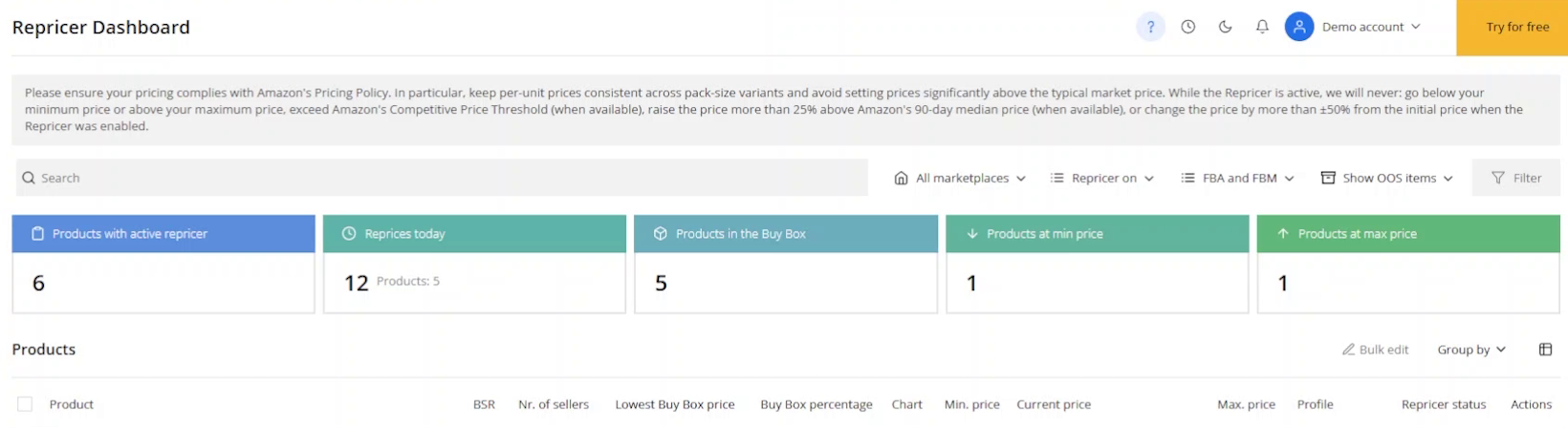
- Select the marketplace and apply the filters for the listings you want to review. The summary tiles reflect that selection.
- Compare each listing’s Current price with Min. price and Max. price, then check its Profile and Repricer status.
- Compare Buy Box performance and profitability together. A higher Buy Box share is less useful if you gave up too much profit to get it.
| Metric | What it tells you |
|---|---|
| Products with active repricer | How many listings in the current view have repricing active. |
| Reprices today | Today’s price-change activity for the current view. More changes are not necessarily better. |
| Buy Box percentage | The share of time the listing was in the Buy Box over the last 24 hours. |
| Margin | Net profit divided by sales, as a percentage, for the last 30 days. |
| ROI | Net profit divided by COGS, as a percentage, for the last 30 days. |
| Profit per unit | Net profit divided by units sold for the last 30 days. |
The last three figures show historical performance, not your profile targets. Compare the same reporting periods when judging results.
How do I check a price change?
- On Dashboard, open the listing’s Chart. Check the period and hover over a point to compare your price, the lowest Buy Box price and your Buy Box status at that time.
- Open Repricer, then Log. Select the marketplace, search for the listing, select the matching result and apply the filter.
- Review the matching entries’ Date, Old price, New price and Status. If you need to confirm the live shopper-facing price, check the exact marketplace offer on Amazon.
Use results that match your goal: profit per unit for Maximize profit, sales pace plus margin for Maximize sales, and remaining stock versus time left for Liquidate stock.
Troubleshoot
Why can’t I find my listing?
Confirm the Amazon account, marketplace and SKU or ASIN. On Dashboard, switch to All products and check the fulfillment and out-of-stock filters. The same ASIN can have several seller SKUs or marketplace offers, so confirm the exact listing before making changes.
Why is the Repricer on but the price hasn’t changed?
Start with the saved profile, limits and schedule. A competitive price may not need to change. Open the listing’s chart and check Log for recent activity. A price at its minimum or maximum may be behaving as configured; review why it reached the bound before changing it.
Why did the Repricer pause a listing?
Check the reason shown for the listing on Dashboard:
- Inactive listing or unsupported condition: Check the Amazon listing status and condition. Used or Collectible listings cannot be repriced. An active listing without a Buy Box is not the same as an inactive listing.
- Active Amazon sale: A scheduled Amazon sale price can take precedence over the regular offer price. The Repricer pauses the listing and checks again; repricing can resume after the sale ends.
- Missing COGS, current price or Amazon fee estimate: Check the listing price on Amazon and the product’s cost in sellerboard. The Repricer retries missing fee estimates. Contact support if the warning persists.
- Price limits cannot be calculated: Check for an unreachable margin or ROI target, conflicting minimum and maximum, or a manual override. For FBM, check buyer-paid shipping against the minimum.
- Schedule or monthly allowance: Check the profile’s active window and the account’s warning. The monthly allowance counts Amazon notifications about competitor prices and Buy Box winners, not the number of price changes. If it runs out, prices stay where they are, and repricing resumes automatically when the allowance resets at the start of the next month.
Why doesn’t the estimated profit match my Profit Dashboard?
Your profile uses estimates to calculate price limits. When formula-based limits recalculate, the Repricer uses product costs and applicable fees and can include estimates for advertising, refunds, other Amazon fees and indirect expenses allocated to the product. Expenses that can’t be attributed to a product are not included in those estimates. The Profit Dashboard reports actual sales and expenses for the period you select. Compare the same listing and marketplace, and check whether a fixed listing limit overrides the profile. A predicted profit floor and actual profit per unit are not the same measure.
What should I send to support?
Include the marketplace and SKU or ASIN, the profile and saved limits, the warning or log entry, and the time and timezone of the issue. If the displayed price differs from Amazon’s, include both prices and note any buyer-paid shipping. Don’t include credentials.
Watch the Repricer walkthrough · Contact sellerboard support