Use Variable Expenses to include Amazon selling costs that change with your sales, orders, units sold, or ad spend. For a fixed cost such as a monthly software subscription, use Indirect expenses instead.
Create a rule · Choose a calculation · Limit where it applies · Check the result · Troubleshoot
Create an expense rule
Start with one cost and a short period you can check. First make sure you aren’t already recording the same cost in COGS, shipping, or another expense.
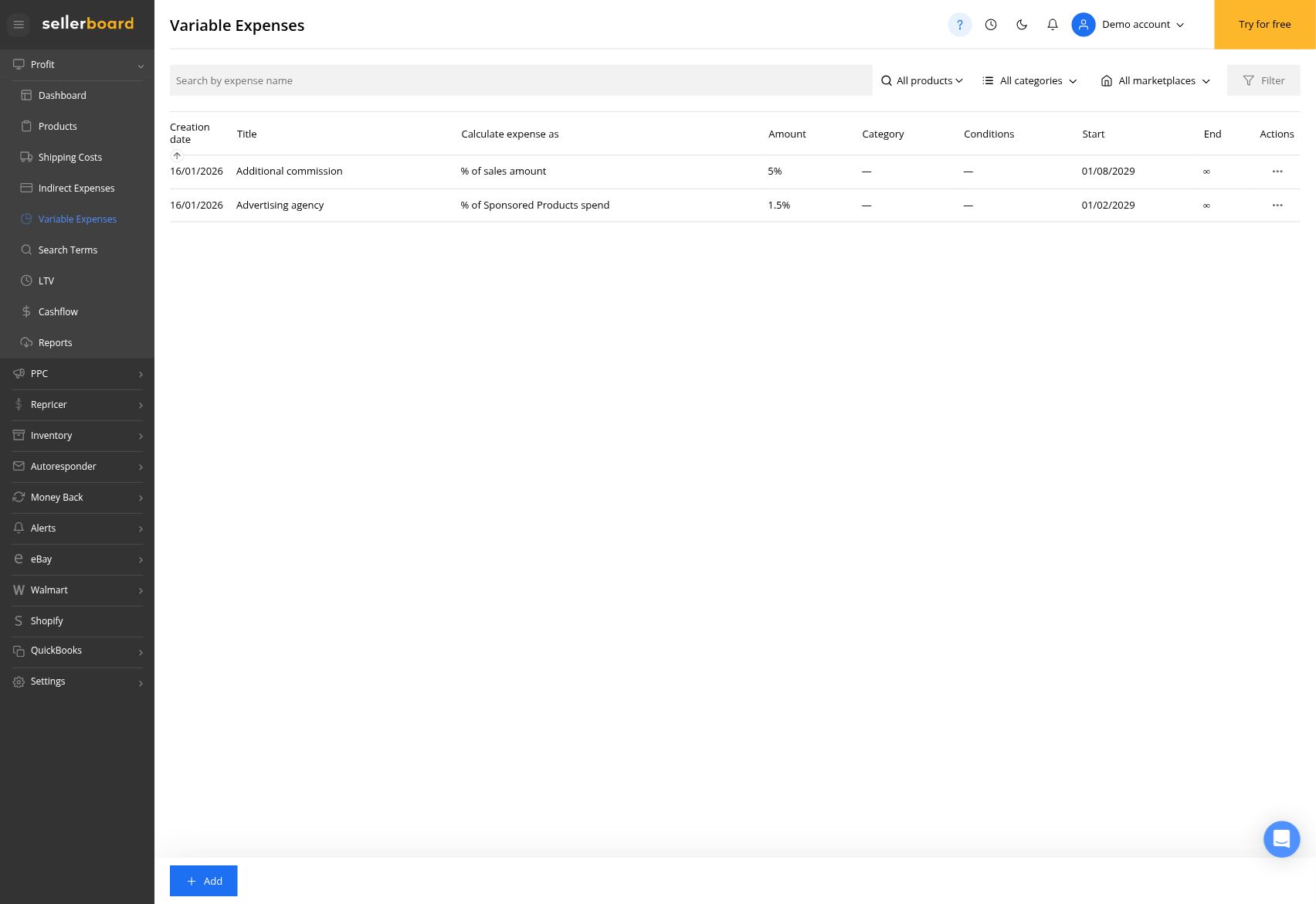
- Open Profit in the left menu and select Variable Expenses.
- Select Add. Under Calculate expense as, choose what the fee is based on.
- Enter a title, the amount or percentage, and the currency when shown. Set the Starting from date. Keep Forever selected for an ongoing cost or set an end date for a temporary one.
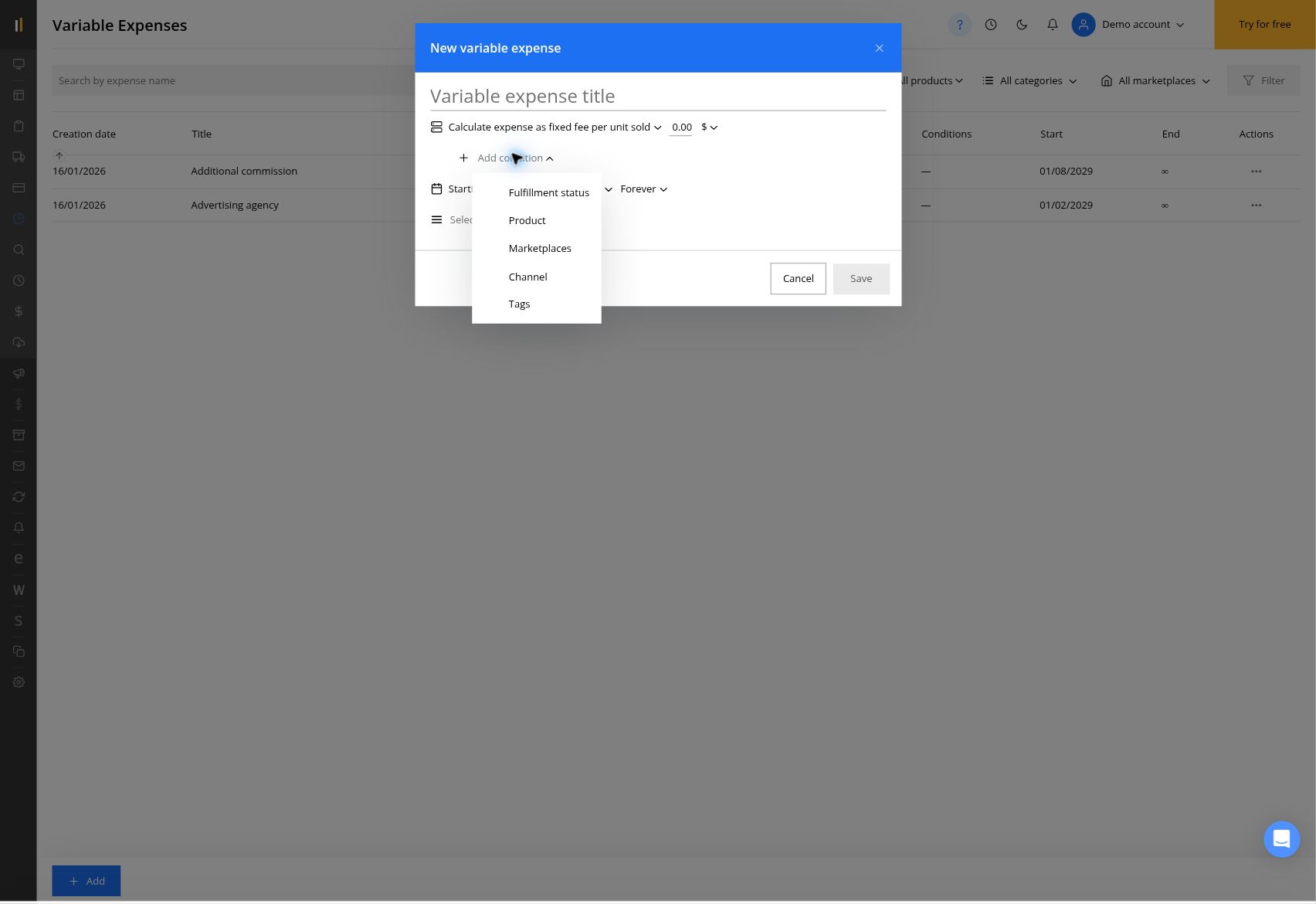
- Add conditions if the fee should apply only to certain activity. Choose a category if you use categories to organize costs.
- Select Save. Reopen the rule from the list to review the calculation, dates, and conditions.
Choose a calculation
Fixed fee per unit sold: Use this for a cost on each sold unit. A $0.60 prep fee on 20 eligible units totals $12. It does not represent a prep center bill charged when stock arrives.
Fixed fee per placed order: Use this for a cost charged per order. A $0.45 packaging fee on 20 eligible orders totals $9.
% of sales amount: Use this for a commission based on sales. At 4% on $250 in eligible sales, the expense is $10. The sales basis includes shipping.
% of ad spend: Select the ad type used to calculate your fee, such as Sponsored Products, Sponsored Brands, or Sponsored Display. A 7% agency fee on $300 of Sponsored Products spend adds $21 as a separate expense.
Limit where a rule applies
- Open the rule and select Add condition if the option is available for your calculation.
- Choose the condition and select the values. For example, on a per-unit rule, select Marketplaces and Channel to limit a prep cost to FBA in one marketplace. You can also use Product, Tags, or Fulfillment status when offered.
- Review the conditions before saving. If two rules cover the same activity, make sure they represent different costs.
Check the result
- Open Profit and select Dashboard.
- Select the same marketplace and a date range covered by the rule.
- Expand the profit breakdown using More and check the variable expense. For a fee per sold unit, compare against an order you can verify: three eligible units at $0.60 add $1.80. For a fee based on advertising, start by comparing spend for the selected ad type and period.
Troubleshoot
The amount looks wrong: Check the dates and marketplace in both the rule and the Dashboard. Confirm the currency, calculation, and product or channel conditions. If the difference remains, share the rule name, marketplace, date range, and one affected order or product with Support.
The cost is ending or the rate is changing: Use an end date to stop the old rule. If you add a replacement, start it after the old rule ends so the dates don’t overlap. Review the affected periods in the Dashboard.